Folders in Ofuma: Giving Ten Prompts a Filing System
Ten prompts in a flat list is fine. Sixty is a junk drawer. Nesting, paths, per-folder permissions, and moving prompts around in bulk.
By Dumebi ·

Everybody has the drawer. The one in the kitchen with batteries, three keys nobody can identify, a phone charger for a phone you no longer own, and a single screw. It started as "somewhere to put this thing for now" and it ended as an archaeological site.
Prompts do this too, and faster than you would think. You start with four and a flat list is obviously fine. Then someone adds a variant for the Nigerian market, and a judge prompt, and two experiments, and a thing called test-2-FINAL-real. By prompt forty you are scrolling and squinting, and the search box has become the only navigation you actually use.
Folders are the answer, and they are exactly as boring as they sound. That is a compliment. This is a filing cabinet, and a filing cabinet should not have opinions. But there are a few things underneath that are worth knowing, especially the permissions, so let us go through it.
What a folder is
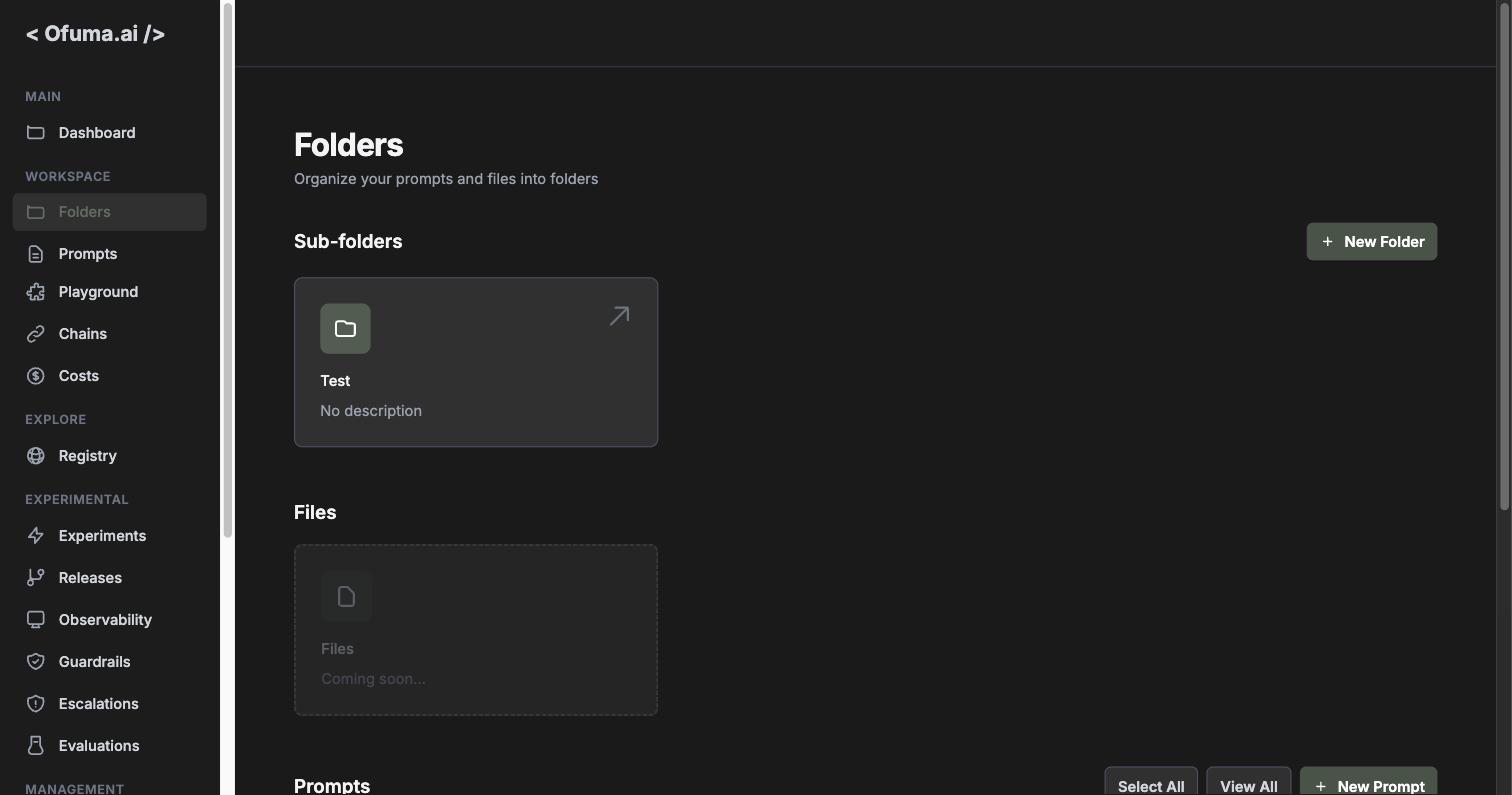
A folder holds prompts, and it can hold other folders. That is the whole idea.
Two details make it more interesting than a plain list.
Nesting has no depth limit. A folder can contain a folder that contains a folder, as deep as your patience goes. There is no "maximum 3 levels" rule waiting to annoy you.
Every folder has a path. Not just a name, an actual full address like /marketing/campaigns/2024. This gets stored and kept up to date for you, and it is what makes the breadcrumb at the top work. Rename a parent folder and every path underneath it is rewritten automatically, so the whole subtree stays correct. You do not have to think about it, but knowing it exists explains why the app always knows exactly where you are.
Root is not a folder. It is simply the absence of a parent. A prompt with no folder sits at Root, which is why the Prompts editor shows Root / Prompt One in the breadcrumb. Root means "not filed anywhere," which is a perfectly acceptable place for a prompt to live.
Paths are unique per team, so you cannot have two folders at the same address. Two different teams can each have their own /marketing and never collide, because folders belong to teams, which brings us to the most important sentence in this article:
Folders are scoped to your active team, not your organisation. Every folder you see belongs to the team you are currently in. Switch teams and you get a different filing cabinet. If a folder you swear you created has vanished, you are almost certainly in the wrong team, not losing your mind.
Creating a folder
Hit New Folder. The modal is two fields, which by now you will recognise as the house style.
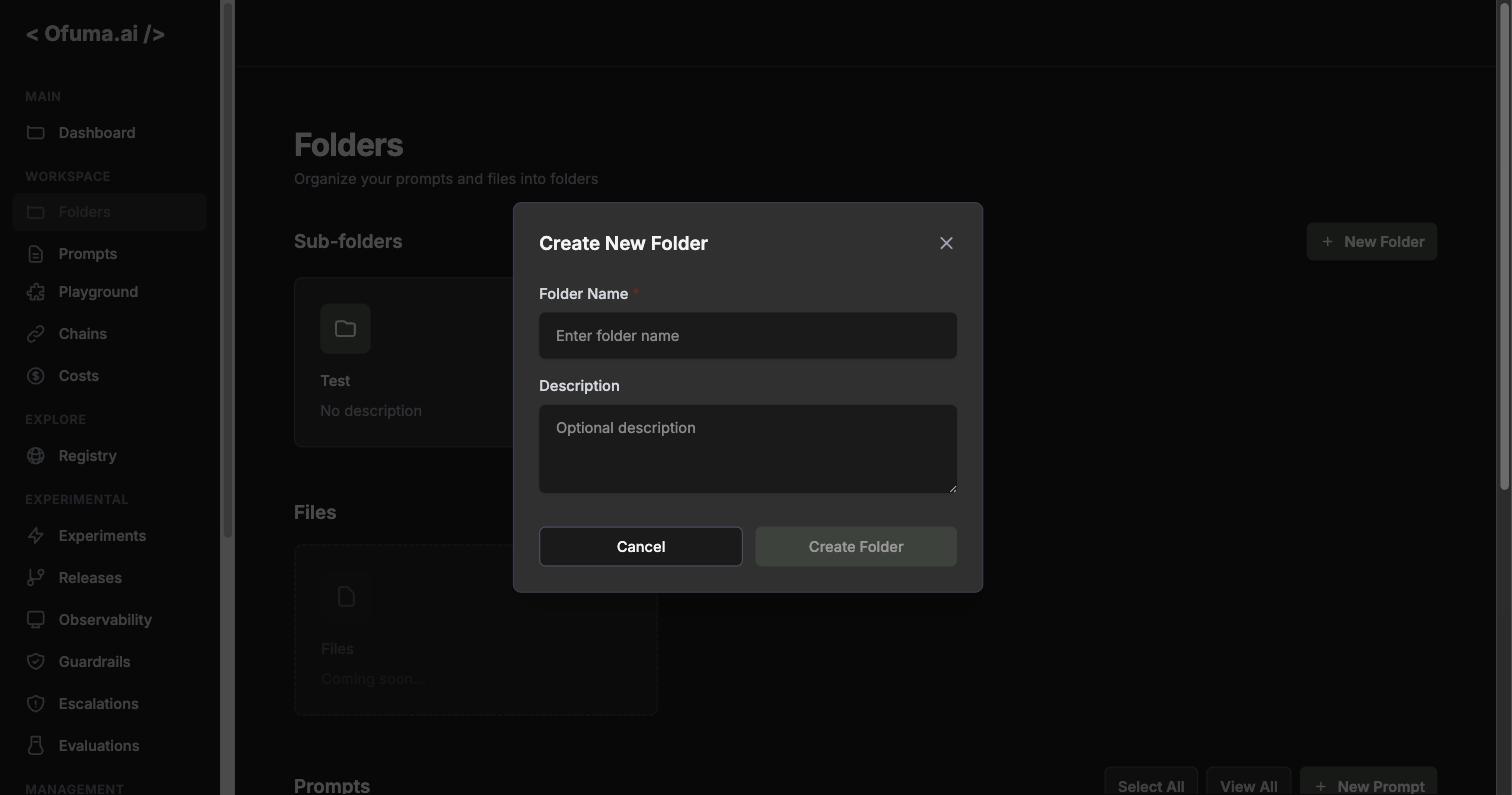
Folder Name (required, 1 to 255 characters)
Description (optional, up to 2000 characters)
If you are already inside a folder when you click it, the new folder is created inside that one. That is what the Sub-folders heading is telling you: you are always looking at the children of wherever you currently are.
If a folder with that path already exists, you get a clear 409 folder_exists rather than a confusing duplicate. And you cannot make a folder its own parent, or create a loop by moving a folder inside one of its own descendants. The app walks the parent chain and refuses. This is the sort of thing you never notice working, which is the point.
The thing that happens quietly on create
Here is a detail worth knowing, because it is doing real work on your behalf.
The moment you create a folder, Ofuma writes permissions for every member of your team: you, the creator, get admin on it, and everybody else gets view. Automatically, every time, no dialog.
This is a good default and it is worth understanding why. The alternative, a folder that starts locked to only you, means every new folder begins with a small administrative chore: adding your colleagues one by one so they can see the thing you just made. Instead the folder starts visible to your team and you tighten it only if you need to. Sensible defaults do not ask permission.
Right-click the folder
This is the part you will miss if nobody tells you, because nothing on the card advertises it. Right-click a folder and a context menu appears with everything you can do to it.
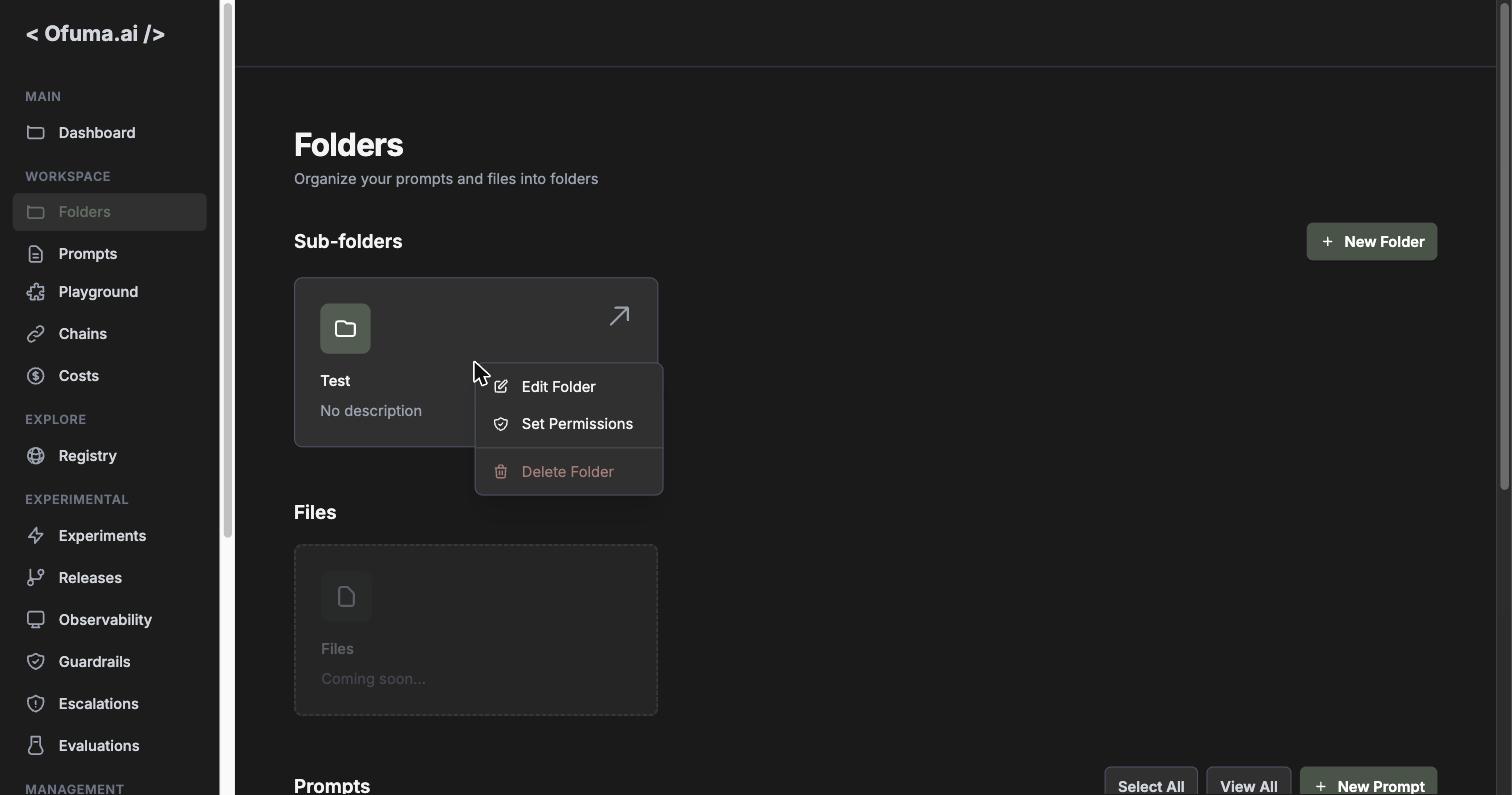
Three actions, and the third is deliberately set apart from the other two:
Action | What it does |
|---|---|
Edit Folder | Rename it, change its description, and move it somewhere else |
Set Permissions | Decide who can see and change it |
Delete Folder | Remove it (the destructive one, styled in red and separated by a divider) |
That divider is doing quiet work. Edit and Set Permissions are reversible. Delete is not, so it lives on its own below the line, far enough from the other two that your mouse does not find it by accident. It is a small piece of respect for the person clicking.
Edit Folder
Worth opening even if you only came to rename something, because it has a field the create modal does not.
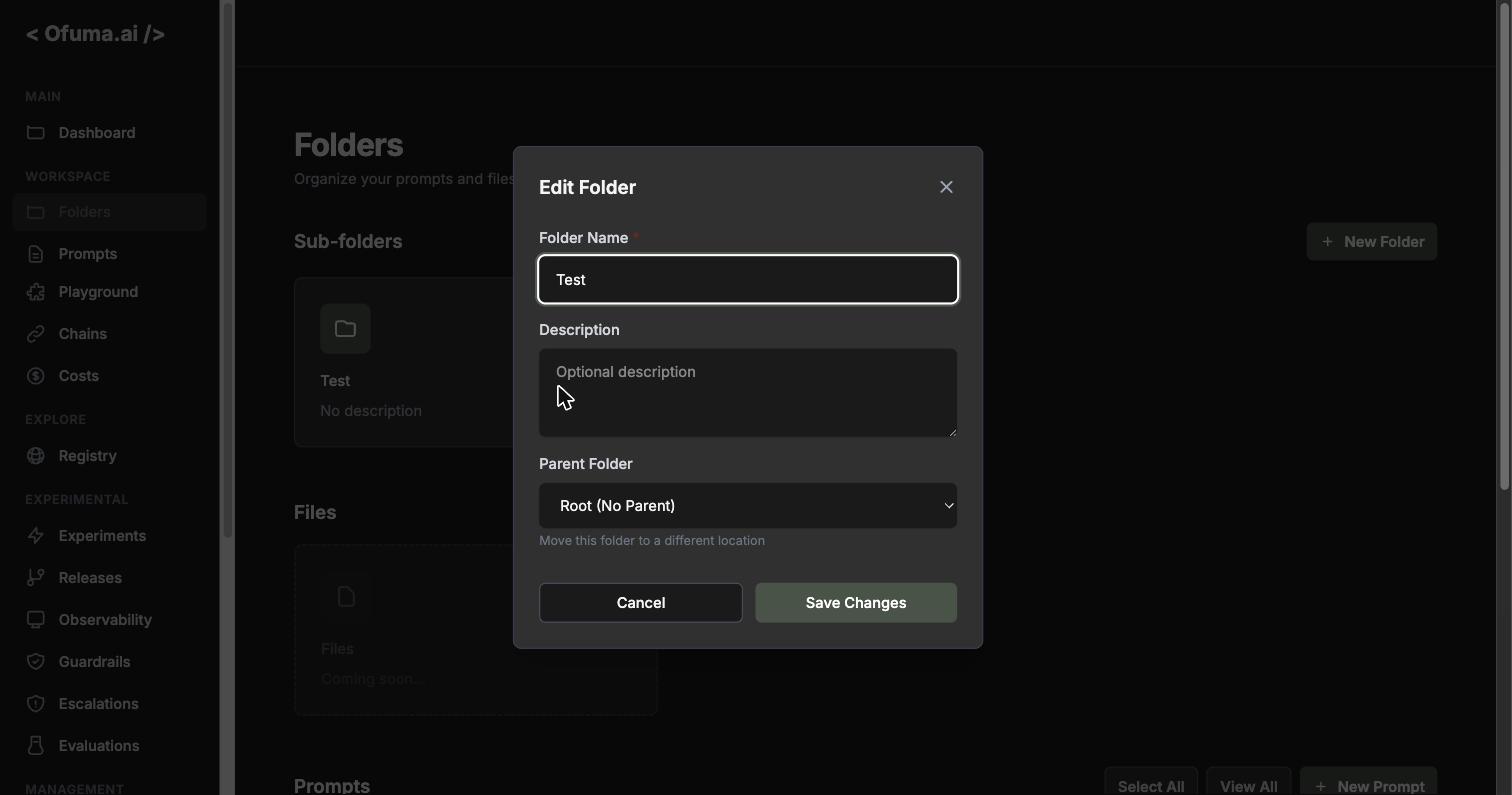
Folder Name (required, pre-filled with the current name)
Description (optional)
Parent Folder (the interesting one)
That third field, captioned "Move this folder to a different location", is how you move a folder. Not drag and drop: a dropdown. Pick a new parent, hit Save Changes, and the folder relocates with everything inside it. Choose Root (No Parent) to pull it back up to the top level.
This is the thing most people hunt for and do not find, because "move" sounds like it should be its own menu item and instead it is a field inside Edit. Now you know.
And remember the paths from earlier: moving a folder rewrites the path of every folder and prompt beneath it, automatically. You move one thing and the whole subtree follows, correctly. The app will also refuse to move a folder inside one of its own descendants, which would otherwise create a loop with no way out.
Set Permissions: view, edit, admin
The second context-menu action opens the permissions modal, which is where "who can touch this" gets decided.
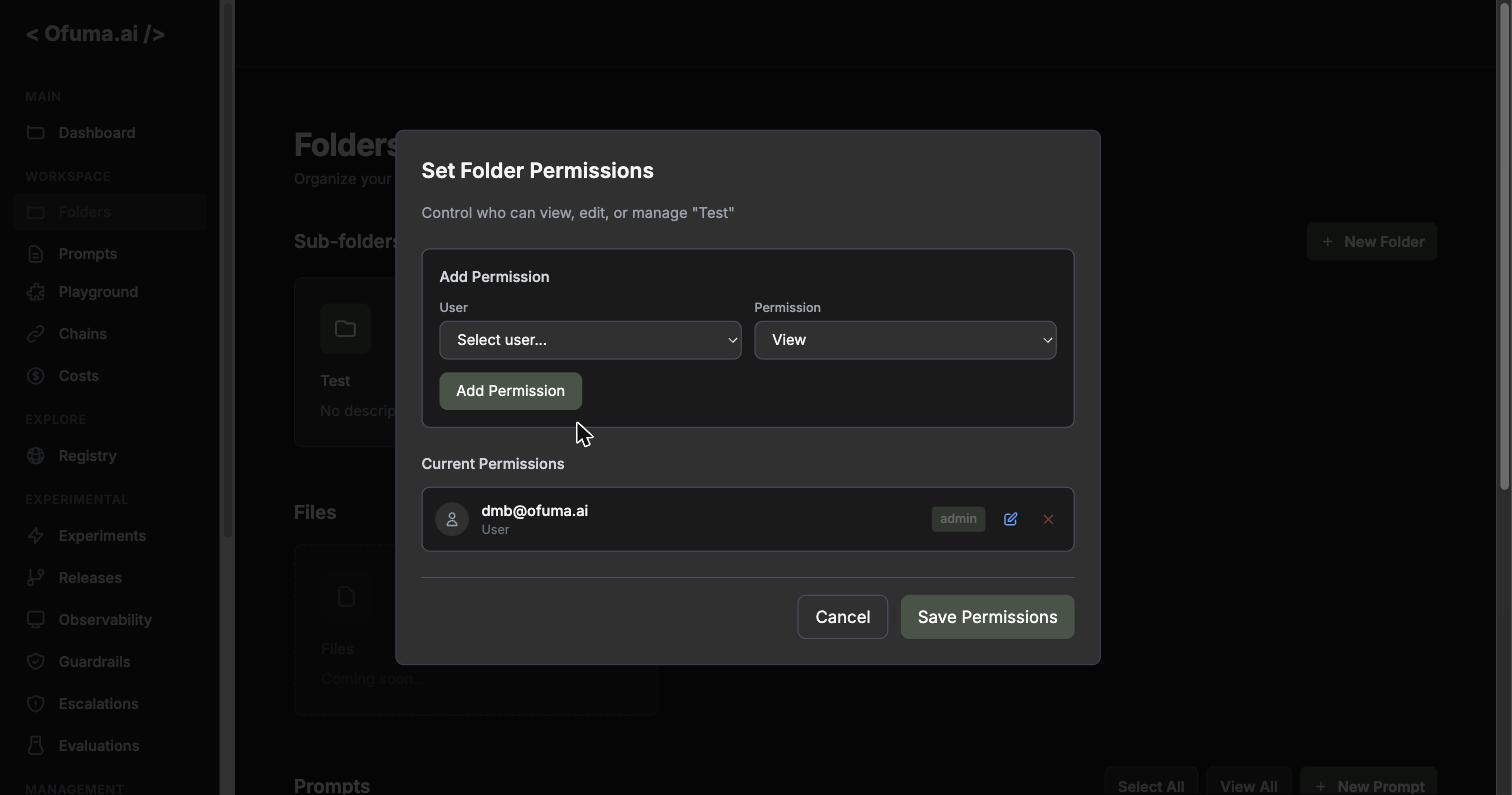
The modal has two halves, and the header tells you which folder you are editing ("Control who can view, edit, or manage Test"), which is a useful sanity check before you start changing access.
Add Permission is the top half: pick a User from the dropdown, pick a Permission level, click Add Permission.
Current Permissions is the bottom half: everyone who currently has access, each row showing the person, a badge with their level (admin in the screenshot), a pencil to change it inline, and an x to remove them.
Nothing is saved until you hit Save Permissions, so you can add, change your mind, and remove without consequence. Cancel walks away from the lot.
There are exactly three levels. They stack, so each one includes the ones below it:
Level | Means |
|---|---|
| You can see the folder |
| View, plus you can change it |
| Edit, plus you can manage who else has access |
The stacking matters: if something needs edit, an admin passes too. You do not have to grant somebody both.
Two things sit on top of this, and it is worth keeping them apart in your head.
There is your organisation role (owner, admin, developer, prompt designer), which decides what kinds of things you are allowed to do at all: owners and admins can delete folders and manage permissions; developers and prompt designers can create and update them but cannot delete.
Then there is the per-folder list above, which is about which specific folders matter to which people.
Role answers "what is this person's job here." The folder list answers "which drawers is this person interested in." You need both, and confusing them is the usual source of "why can Ada not delete this."
Filing prompts
A prompt gets its folder in one of two ways.
At creation. The Create Prompt modal has a Folder dropdown, including a "Create New Folder..." option so you can file it somewhere new without leaving the modal.
By moving it later, which is what you will actually do most of the time, because organisation is something that happens after the mess exists, never before.
At the bottom of the folders page is your prompt list with a checkbox on each row. Tick a few and a Move Selected button appears. There is a Select All if you are doing a big cleanup. Pick a destination from the tree, and off they go. The destination picker greys out the folder you are currently in, since moving things to where they already are is not a useful operation.
Selection clears itself when you navigate to a different folder, which is the right call: a checkbox you ticked three folders ago should not still be armed when you press a button here.
You can also move a prompt back to Root, which is the same as saying "unfile this."
One practical note: moving a batch is done one prompt at a time behind the scenes, so a big move is a series of small operations rather than one atomic swap. For everyday cleanups this is invisible. If you are ever moving a genuinely large batch, move in sensible chunks rather than selecting two hundred rows and walking away, and glance at the result when it finishes.
Deleting a folder
Delete is the third item on that right-click menu, and it works on an empty folder: no sub-folders, no prompts.
So the reliable sequence is: empty it first, then delete it.
Move the prompts somewhere else (or to Root) using Move Selected
Deal with any sub-folders the same way, innermost first
Then delete the now-empty folder
This is a little more manual than a single click, and I would argue it is the right kind of friction. A folder delete that silently swept away everything inside it is a category of Monday morning I would not wish on anyone. Emptying a folder deliberately means you look at what was in there, and looking is usually where you notice the thing you did not mean to throw away.
Remember that deleting a folder is not the same as deleting your prompts. They are separate things: the folder is the drawer, not the contents.
The Files card
There is a Files card on the page marked "Coming soon..." and greyed out. It is a placeholder for attaching files to a folder later. It is honest about itself, which I appreciate in a UI element. Nothing to do here yet.
So what is it really for?
Folders are unglamorous, and the temptation is to skip them until you need them. Which is exactly the trap, because the moment you need them is the moment you have sixty prompts and no idea which of them are load-bearing.
The reason it earns its place in the sidebar is quieter than "tidiness". Look back at the Dashboard numbers: Total 10, Active 3. Seven prompts that have never reached production. In a flat list those seven are just noise you scroll past forever. In a filing system, they are a /drafts folder, and suddenly the question "can we delete any of these" has somewhere to be asked.
A filing cabinet does not make you organised. It makes disorganisation visible, which is the first step and the only one most teams skip.
I hope you are still with me, because next we go to Prompts, where we open one of the things you have been filing and go through every knob on it, one at a time. 🎛️
Let every man be swift to hear, slow to speak, slow to wrath. - James 1:19